Categories
articles

Google Reader RSS Feed Alternatives

An RSS Reader automatically gathers website articles and posts from websites you subscribe to. Rather than visiting many different websites for your news, you can use the reader as an aggregate of all your news.

As of July 1, the Google Reader RSS Feed service will be no longer available (see the official announcement below). Because Google Reader has been one of the most popular readers, many people are looking for alternatives.

Two alternatives that seem to work well are Digg Reader and Feedly. These services are able to import all your Google Reader news feed information. Mobile apps are currently being rewritten to work with these other services. The Digg Reader service launched just days before the shut down of Google Reader.

* * *

Below: Announcements from Google about Google Reader

How can I download my Reader data?

Google Reader will be retired on July 1, 2013. If you’d like to download a copy of all your Reader data before then, you can do so through Google Takeout. You’ll receive your subscription data in an XML file, and the following information will be downloaded as JSON files:

  • List of people that you follow
  • List of people that follow you
  • Items you have starred
  • Items you have liked
  • Items you have shared
  • Items shared by people you follow
  • Notes you have created
  • Items with comments

Click here to start downloading your Reader data from Takeout. Once downloaded, your subscription data should be easily transferrable to another product, where you can continue to keep up with your online reading.

* * *

Powering Down Google Reader
3/13/2013 04:06:00 PM

Posted by Alan Green, Software Engineer

We have just announced on the Official Google Blog that we will soon retire Google Reader (the actual date is July 1, 2013). We know Reader has a devoted following who will be very sad to see it go. We’re sad too.

There are two simple reasons for this: usage of Google Reader has declined, and as a company we’re pouring all of our energy into fewer products. We think that kind of focus will make for a better user experience.

To ensure a smooth transition, we’re providing a three-month sunset period so you have sufficient time to find an alternative feed-reading solution. If you want to retain your Reader data, including subscriptions, you can do so through Google Takeout.

Thank you again for using Reader as your RSS platform.

Categories
articles

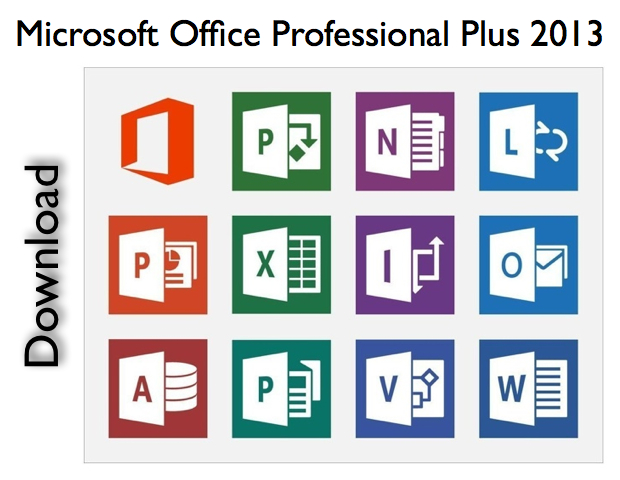
Download Microsoft Office Professional Plus 2013

20130630su-microsoft-office-2013

Office Professional Plus 2013 includes Word, PowerPoint, Excel, Outlook, OneNote, Access, Publisher, and Lync. A 60-day evaluation trial version can be downloaded from Microsoft. [click here] The product can be purchased from Amazon in the pro or pro plus version.

Categories
articles How To

The Evolution of Address Books and Contact Lists

20130627th-contacts-evolution

Summary. Technological advances and convergence has impacted how we think of and use address books and contact lists. The chronology below is somewhat of an oversimplification. Convergent devices and software existed early on, but were not as widely embraced and utilized as they are today. So, with a simple

1970s Address Book

20130627th-contacts-evolution-retro-vintage-address-booksIn the 1970s, prior to the wider use of computerized devices, it was common to have a single printed or handwritten address book.

This centralized address book would contain all the contact information needed for all people and businesses you frequently needed to contact.

One might even put their account number and other pertinent information in this address book as well.

Entries might be hand written or typed using a typewriter for those wanting a cleaner look.

1980s Address Book

With the introduction of computers and electronic address books, people began typing their address lists into electronic devices. For early adopters of online computing, this may have included a separate electronic directory of people’s contact information. Fax machines with internal memory would have an electronic directory of fax numbers. Telephones had their own built-in electronic directories. Because these different devices didn’t communicate with each other, it was common to have one’s address book scattered around various devices. If a person moved, and updated their email, phone, fax, and mailing address. It would be necessary to update this information on multiple devices.

1990s Address Book

In the 199s, the devices of the 1980s became more advanced. From decade to decade technologies changed, but the list below reflects the broader social use of these technologies.

  1. Fax Machine. Most of us have had Fax machines, and these have had an internal directory of names and fax numbers. Needless to say, no other information was contained beyond just the fax number and a name.
  2. Telephone. It was common to have a telephone directory either as a rolodex or address book near the telephone. At some point this printed directory moved to an internal listing inside our mobile phones. This list contained usually just a name and phone number. More advanced phones allowed for home and business phone numbers for an individual.
  3. Mailing List. Since most of us needed to communicate to a group of people by postal mail, it was common to have a directory in a computer with names and addresses. This could be used to print labels, print envelopes, and/or perform mail merge using Microsoft Word and Excel. The mailing list later became an email distribution list.
  4. Email Program. With the increased use of email, we began to develop directories of email addresses. These would usually have people’s names and email addresses only.

Microsoft Outlook 2000

Microsoft Outlook was one of the first widely adopted programs to integrate all of the above functions: fax sending, emailing, and mail merge. One could also print their telephone directory. Included with Office 2000 and subsequent versions of Office, Outlook became a commonly used program. Increasingly, electronic devices (like the Palm) would include the ability to synchronize with Outlook. So, you could take a synchronized version of your entire address book with you. This was helpful, for example, when traveling to someone’s home or business, you could double-check their address. Or, if needing to call someone, you’d have their information with you. Similarly, information entered into a Palm device, would later be pushed into Outlook on the computer when synchronized. People soon realized the benefits of having a single synchronized unified address book (as we’d had in the past).

PRESENT DAY…

With smart phones, now people are calling, emailing, and otherwise communicating in multiple forms with people. We expect our computer and phone to have email, phone number, fax number, and physical address (for mapping). We’re updating and adding data while mobile, to phones, tablets, and computers. The “cloud” makes it possible to synchronize without using wires, but in all other respects, the process remains the same.

Categories
How To Uncategorized

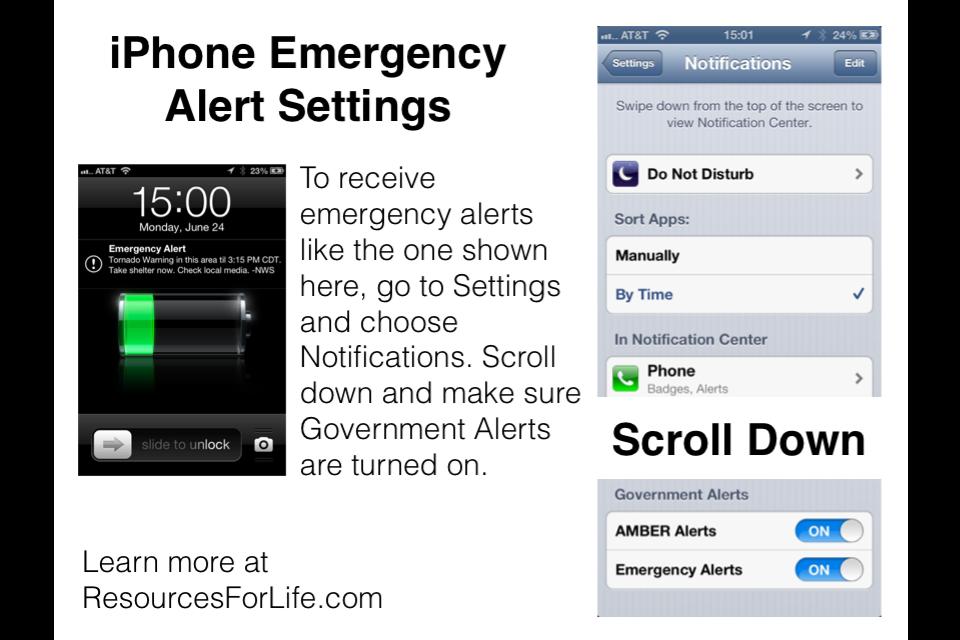
Configuring iPhone Notification Settings to Receive Emergency Alerts from Government Agencies

The graphic below shows how to set your iPhone Notifications to receive emergency alerts from government agencies. Click here or the image below to enlarge.

20130624mo-iphone-emergency-alert-settings

Categories
How To

Using MailChimp to Send an Email or Newsletter to a Distribution List or Group of People

20130624mo-mailchimp

Summary. Communicating with smaller groups of people can be done using standard email services (Gmail, Hotmail, Yahoo) and, if you desire, additional software can be used (Thunderbird, Outlook, Apple Mail). Most of these have a “group” capability in their address book or contacts list, and they allow for sending a single email to a few dozen people. However, with larger lists, it’s necessary to use an email distribution system or service for the reasons mentioned below. This document describes why you’ll want to use MailChimp, and describes how it works. Effective email distribution is a little bit complicated to get setup. This is why you may want to have assistance from someone skilled with the process. Contact us if you need additional help.

Overview. Before you get intimidated, here’s a simple overview of how MailChimp and other email distribution systems work.

  1. Setup a mailing list. An existing list can be imported, or you can start from scratch.
  2. Create a message or newsletter to send people (this is called a “campaign” in MailChimp).
  3. Send your message.

That’s all there is to it. The rest of this document describes the above process in more detail, and also explains why email distribution systems are necessary. The instructions here are specific to MailChimp, but apply to just about any service. The screen images used here are current as of June 2013 after a redesign to the MailChimp system. However, they may not be accurate a year from now. So, it’s important to focus on learning the general process and develop the intuitive skills required.

Problems With Group Mailings. As you approach 30 or more recipients for a single email, several problems can arise if  you try to send that message using traditional email methods.

  • Your email service provider may suspect you of sending SPAM (unsolicited junk emails) and this could result in your account getting shut down or temporarily frozen.
  • When people receive an email with a long list of recipients, they are less likely to consider it personally relevant to them. It will be perceived as impersonal and likely to be junk mail.
  • Messages with large numbers of recipients are perceived by Junk Mail Filtering systems to be SPAM. So, your message may be blocked and the recipients may not receive it.
  • Managing a list can be time consuming. People frequently change their email addresses. People who are in your list want off. Others want to be added. Delays and typos create further problems.

Benefits of Email List Services. Email distribution systems resolve all of the above problems, and offer additional benefits. For example, some can tell you how many people read your email message. Also, your messages can be formatted to be more attractive.

Email List Service Options. There are several ways to communicate with groups of people. For an example, see the Iowa City Scrabble Club subscribe page. On that page you’ll see the following five methods used. They are described here briefly.

  • MailChimp.  An email subscription system that allows the use of existing lists, and also provides a signup form for new subscription requests. Messages are composed and sent from within your MailChimp account. The drag and drop interface makes it easy to create a fancy newsletter. The service is free for those with smaller lists who send out fewer messages weekly or monthly. The paid MailChimp service levels are similar to those offered by CreateSend.ie or Constant Contact.
  • Facebook. Having a Facebook page is one way to reach people. However, there’s no guarantee that they will see your message unless they visit your page, or happen to be on Facebook when you post an announcement.
  • Twitter. Like Facebook, Twitter isn’t a reliable way to communicate with people. Since people may be reading through many Tweats that scroll by on their news feed, they may miss your postings.
  • Yahoo Groups. Similar to MailChimp, Yahoo Groups lets you import an existing list of email addresses (up to 100 per day). There are also additional collaborative tools.
  • WordPress.com Subscription. This option lets you email website posts by email. Since all posts are distributed, it may be best to setup a dedicated WordPress.com subscription website for monthly newsletters (for example). However, it’s not necessary. If your website followers are sufficiently interested, they will appreciate getting all posts in real-time.

What MailChimp Does. MailChimp is really several services in one: (1) mailing list manager, (2) email composer, (3) email sender. It’s logical to have all these combined in one service. Yet, in the past, it was common for a person to manage their email list in a spreadsheet, create their newsletter using Publisher, and send it using an email service provider. That was a lot of work. Having all of these functions in one place makes things easier.

Mailing List and MailChimp. For most mailing list needs, a single mailing list will be imported or started from scratch. The ongoing maintenance of the list will be done automatically through signup/subscribe forms and unsubscribe requests.

  1. To get started, once logged into MailChimp, you’ll create a list for the first time. Skip this step if someone has already done it for you. Otherwise, go to step #2.
  2. Go to Lists and click on Create List. When you create your list, you’ll be asked to give it a name and you’ll provide other default information for use later when sending.
    1. Note: Unless you’re managing multiple lists for multiple groups, you’ll probably just have one list. In fact, it’s probably best to have separate MailChimp user accounts for different lists, since the free MailChimp service restricts the size of lists to 2000 people or less and the number of mailings are also limited. This also makes it possible to delegate the work of a certain list to another person (although multiple user accounts are also available).
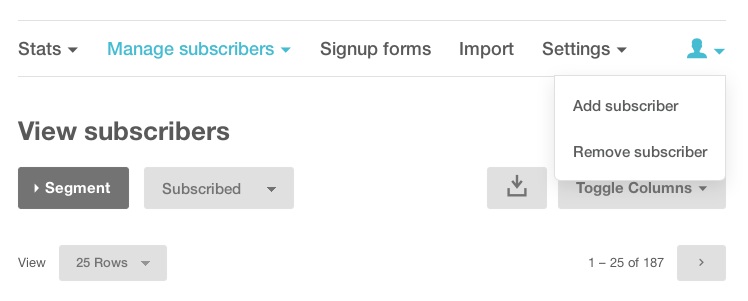
  3. After creating your (initially empty) list, you can begin to add email addresses to it either by importing or adding one at a time. From the Lists page, click on your list to see the management options. In the upper right corner, you’ll see a silhouette of a person. Hover your mouse to reveal the Add Subscriber option as shown below. Click here or the image for a larger view.
20130624mo-mailchimp-add-subscriber

Once you click Add Subscriber, you’ll get a form like the one shown below. You can use this form to enter people one at a time.

20130624mo-mailchimp-add-subscriber-form

If you have an existing list, import the list from your computer. Go to the main Lists page, click on the List name, click Import, and follow the instructions.

Letting People Subscribe. Most lists are built over time when people Subscribe to your list (called opt-in). You can send people to a subscription page for your MailChimp mailing list by following these steps:

  1. Go to the main MailChimp Dashboard.
  2. Select Lists.
  3. Click on the list name.
  4. Click on Signup Forms
  5. Click on Link to a Form
  6. Customize, or just click Click Share It
  7. Copy the short URL that will send people to your form. It should begin with http://eepurl.com/
  8. When people go to that link, they will be able to signup for your list. You can send that link out by email and even share it on a website.

Creating a Newsletter or Email. Follow these steps to create a newsletter or email.

  1. Go to the main MailChimp Dashboard
  2. Click on Campaigns (these are like newsletters)
  3. If you’ve had a previous campaign similar to what you want to create now, then from the drop-down arrow/triangle on the right, choose replicate. Otherwise, click on Create Campaign.
  4. Choose who the message will go out to. Usually it’s your entire list.
  5. Give the campaign a name. You might consider using YYYYMMDD-name as a format. So, a newsletter being sent on June 24, 2013 would be called 20130613-newsletter. Fill out or customize any of the other settings as needed then click Next.
  6. Choose a Template. Drag & Drop editor works well, so choose that.
  7. Select a Template by clicking on Basic Templates. Select One Column.
  8. Fill out all areas of the initial sample template. In the upper right corner, you’ll see “Use this area to offer a short preview of your email’s content.” Click on that text to put a custom message or link (like a link to your Facebook page).
  9. You can click and drag any element from the right to your newsletter on the left. Click on any existing placed element to edit it.
  10. Click Next. A text only message will be created from what you designed above. If you’ve replicated a previous campaign, the previous text message will be here, so be sure to update it by clicking on Copy Text From HTML Email.
  11. Click Next and review all of your choices and selections.
  12. At the top of the page, under Preview & Test,  you’ll find an option to Send a Test Email. Choose this option to make sure your email will look okay.
  13. View your message (the test message) on a desktop/notebook computer as well as other devices like a tablet/iPad and smartphone/iPhone.
  14. Once you’ve confirmed everything is okay, click Send Now.

The above steps are detailed and may look a bit intimidating. However, once you’ve done this a few times, you’ll see that it’s simply a matter of replicating and then modifying previous campaigns. So, sending a simple newsletter can be almost as easy as sending a normal email.

Contact us if you have a suggestion for how the above instructions can be made clearer.

20130624mo-new-mailchimp-logo

Categories
articles How To Video

Intel iMac Hard Drive Replacement Instructions and How To Steps (Video)

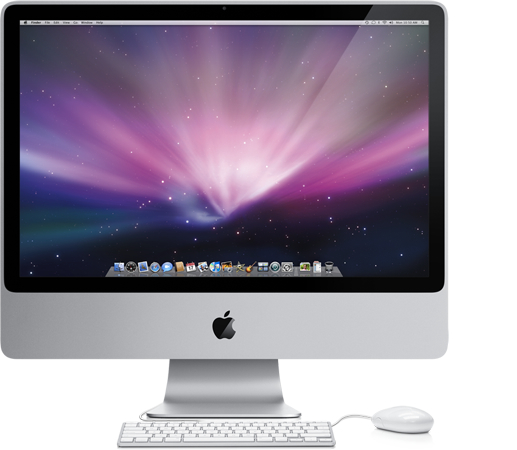
20090606sa-apple-imac-desktop-computerEarlier this year, a friend asked for help replacing the failing hard drive in her iMac.

If you’re familiar with Apple’s recent iMac computers, you know that their design makes them difficult to open. With past models, removing two screws provided access to the entire system. The newer design is much more difficult.

There’s only one screw on current iMac models, and that’s on the bottom of the computer holding the RAM cover-plate. To actually open an iMac computer requires suction cups and a set of tools that most people don’t own.

I don’t spend a lot of time fixing Apple hardware. Most Apple computers are new and under warranty, and even the old ones don’t break down. Generally what I see with Apple computers is that the hardware outlives the operating system.

20130312tu-themacdoctor-scott-nelsonSo, for this hard drive replacement, to get some advice, I called The Mac Doctor (Scott Nelson). Scott is really knowledgeable about Apple hardware and software. More importantly, he’s friendly. He’s also able to convey technical instructions and information in a way that meets people’s level of experience. His approach to computer support is that of an educator and trainer. He’s happy to fix things, but wants to also educate in the process — empowering computer users to be more independent. So, for these reasons, I admire his work since it parallels my own approach to consulting.

I planned to talk with Scott on the phone and get a few tips about opening the iMac. Instead, Scott offered to bring the tools and show me first-hand how to open the system and replace the drive. Well, I actually didn’t have the replacement drive yet. So, Scott also offered to pick up a compatible hard drive at Best Buy. The in-home mini-course went well. I had a lot of questions about specific components inside the iMac.

I’m grateful to Scott for his generosity and willingness to reach out and help a fellow computer consultant. This evening I had another iMac that needed a hard drive replacement, and having gone through the process once with Scott, I was much more confident this time in doing it myself.

I wish I’d created a video of the process, but for those interested in learning more, you can watch the YouTube video below which is very similar to what Scott showed me. It helped to have him present to answer some specific questions that aren’t covered in most online videos.

[youtube http://www.youtube.com/watch?v=3w6E2_XqaBw?rel=0]

Transfer of Data, Programs, and Settings. An additional tool and step that I don’t want to go without mentioning will be needed for transferring the data from the old drive to the new one. An external drive case or USB connection kit will allow you to copy files to the newly rebuilt computer. Or, alternatively, you can perform a fresh complete Time Machine backup, and then when prompted, restore your user account, programs, data, and settings from that.

Categories
articles

Apple Airport Extreme Wireless Router Uses a Beamforming Antenna Array

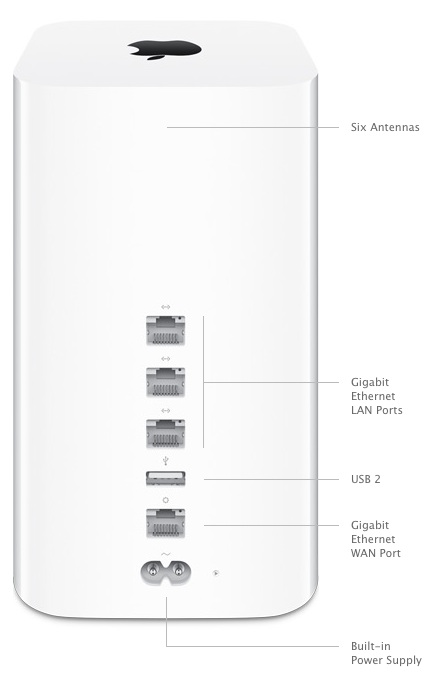
The new Apple Airport Extreme Wireless Router uses a Beamforming Antenna Array to achieve greater distance, speed, and reliability of wireless networking. By tracking the location of wireless devices, the signal pattern is boosted directionally. [More…]

20130612we-apple-airport-extreme

Categories
articles

Finding and Using the University of Iowa (UIOWA) eBuy Website Login Page for Purchasing

The eBuy purchasing portal for the University of Iowa is available by following these steps:

  1. Visit https://hris.uiowa.edu and login using your HawkID and password.
  2. Click on the Administration tab.
  3. Under Systems click on the link for E-Pro(EVouchers & PReqs).
  4. On the One Stop e-Procurement page, click the eBuy link.
  5. You should be at the eBuy home screen and portal to a variety of vendors.
  6. Click the vendor (CDWG, for example) and choose Punch Out.
  7. It’s easiest to have a sales rep at CDWG create a quote, then at this point click on Iowa Quotes, then find your name/quote, then click the Add to Cart button.
  8. Click Checkout.
  9. On the resulting page, click the Transfer Shopping Cart button.
  10. You can Assign the cart to a designated supervisor.
  11. That person needs to review and approve the cart, adding the appropriate MFK accounting codes, then they release it to workflow.
  12. Once in Workflow, it needs to be approved by multiple individuals.
Categories
articles

Apple Computer Sales Numbers, Data, and Trends Presented at the Word Wide Developers Conference

20130610mo-apple-wwdc-logoEach year at the World Wide Developers Conference, Apple reviews their progress over the previous year by presenting some impressive (and often mind boggling) data about software downloads, music purchases, and store sales.

Here are some of the numbers presented this year:

  • There are over 6 million registered Apple software developers with 1.5 million of those having joined in 2012.
  • The WWDC event sold out in 71 seconds.
  • Over 1 million people per day visit an Apple store.
  • Tens of thousands of school children visit Apple stores on field trips every year.
  • There are 407 Apple stores in 14 countries.
  • Over 50 billion software programs have been downloaded from the App Store is 5 years old.
  • There are 900,000 apps in the App Store.
  • There are 375,000 iPad apps in the App Store.
  • There are 575 million people with store accounts at Apple.
  • Apple has paid $10 billion to software developers, with $5 billion of that paid in just the last year. That’s 300% more than the revenue from Android and all other mobile OS systems combined.
  • There are 72 Million Apple Mac computers in use.
  • The iMac announced last year is the #1 desktop computer in the U.S..
  • The Macbook is the #1 notebook computer in the U.S.
  • Over the past 5 years, Apple has a 15% growth rate versus 3% for Windows. During that time, Mac has grown 100%, but Windows has grown 18% total.
  • Mountain Lion OS sold 28 million copies.
  • Mountain Lion is in use by 35% of users, but Windows 8 is less than 5% of Windows users.
Categories
articles

New Apple Safari Internet Browser is Designed to Block Flash Advertising

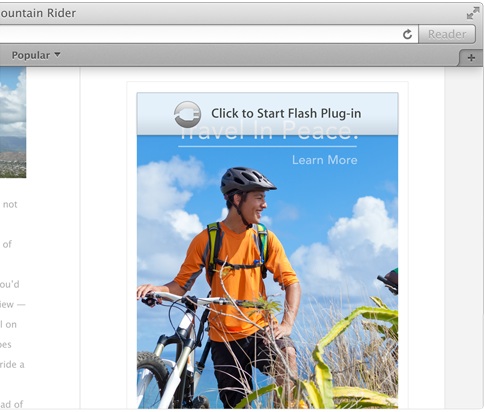
Yesterday Apple announced that their new operating system (Mavericks) will come with a new version of their popular Safari Internet Browser. The new browser will include a feature that can block animated Flash advertising. The feature is similar to their Reader feature that extracts all advertising and presents a clean readable version of content.

Many websites display animations using power-hungry plug-ins that can drain precious battery life. But OS X Mavericks is watching out for you. The new Safari Power Saver feature recognizes the difference between what you came to see and the stuff you probably didn’t. If the content is front and center it plays as usual. But if it’s off in the margins, Safari Power Saver pauses it. You’ll see a static preview, and it won’t run until you click to play it. So if you don’t want to watch something, it won’t take a toll on your battery life. With Safari Power Saver, browsing websites with plug-in content will use up to 35 percent less CPU power.

20130611tu-apple-safari-flash-plug-in-controller-pause-preview-play-control